跳到內容
關於我 數位花園

hugo

2 篇文章擁有標籤:“hugo”

使用 NPM 腳本建立 Hugo 文章

  • 基礎知識:NPM, Hugo, JavaScript, shell script
  • 預先安裝 VS Code, NPM CLI, Hugo CLI

使用 Hugo CLI 建立文章對我而言是一項繁瑣的工作。因為我總是使用文章樣板(archetype)建立文章,並將其放置在巢狀階層的資料匣中。例如,在建立本篇文章時,必須在終端機中輸入以下指令:

Terminal window
hugo new --kind develop posts/_developer/create-hugo-post-with-npm-script

問題在於,我總是忘記擁有多少種文章樣本,以及資料匣結構目前長什麼樣子。資料匣結構可能是動態的,可能非常頻繁地調整。此外,我非常喜歡 VSCode 在側邊選單「Explorer」中提供的 NPM SCRIPTS 功能,如下所示的截圖:
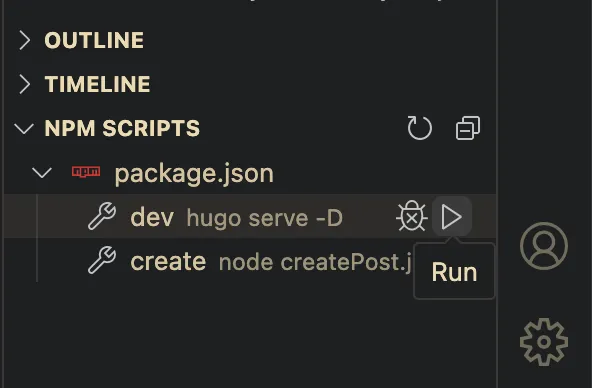
npm script in side menu

這個功能,我個人稱之為「點擊執行腳本」,若使用者無法記住或忘記腳本怎麼寫,此時就非常方便。但據我所知,它似乎只支援 Node 套件管理,也就是 NPM。為了將「點擊執行腳本」功能與 Hugo CLI 結合使用,需要使用 NPM 作為中間件(middleware),縱然 Hugo 靜態網頁在任何時候都不需要 NPM 或任何 Node 套件。讓我們開始吧。

首先使用 npm init 初始化 NPM。

然後,在將此腳本添加到您的 package.json 後,讓我們嘗試透過 NPM 啟動 Hugo 本地伺服器:

package.json
"scripts": {
"dev": "hugo serve -D",
}

在終端機中,輸入 npm run dev,或者只需在側邊選單點擊 NPM 腳本來執行:
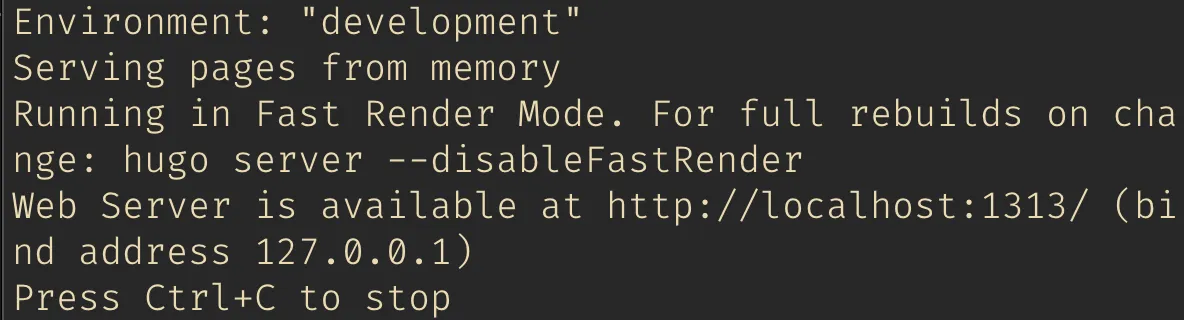
npm run dev

成功執行 Hugo CLI!✨

因此,NPM 腳本完美地呼叫了 Hugo CLI。然後,讓我們嘗試實現最終目標:建立一篇文章。

首先,我們需要安裝兩個套件:

  1. @inquirer/prompts:利用 JavaScript 腳本在終端機裡,打造容易操作的介面
  2. inquirer-directory:在終端機裡也能夠輕鬆操作資料匣路徑

接下來,在根目錄中建立了一個 JavaScript 檔案 createPost.js,以下是程式碼:

"use strict";
const inquirer = require("inquirer");
const { input, select, Separator, confirm } = require("@inquirer/prompts");
const { execSync } = require("child_process");
const inquirerDirectory = require("inquirer-directory");
const BASE_PATH = "./content";
inquirer.registerPrompt("directory", inquirerDirectory);
const exec = (commands) => {
execSync(commands, { stdio: "inherit", shell: true });
};
/**
* Create post script
*
* @see https://github.com/SBoudrias/Inquirer.js
* @see https://github.com/nicksrandall/inquirer-directory
*/
(async function () {
const archeType = await select({
message: "Select a archetype",
choices: [
{
name: "Basic",
value: "basic",
description: "Basic post",
},
{
name: "Dev",
value: "dev",
description: "Post for developer.",
},
new Separator(),
{
name: "Garden",
value: "garden",
description: "Note for digital garden.",
},
],
});
const title = await input({ message: "Enter your post title" });
const directory = await inquirer.prompt({
type: "directory",
name: "path",
message: "Please choose post directory.",
basePath: BASE_PATH,
});
const answer = await confirm({ message: "Confirm create the post?", default: false });
if (answer) {
exec(`hugo new --kind ${archeType} ${directory.path}/${title}`);
exec(`open ${BASE_PATH}/${directory.path}/${title}/index.md`);
}
})();

在腳本中,我提供了 3 個問題,以及一些操作:

  1. 選擇一個文章樣板。
  2. 輸入文章標題。
  3. 選擇一個目錄。
  4. 確認建立。
  5. 執行 Hugo 文章建立腳本。
  6. 最後,打開我們建立的文件。

完成精心打造的腳本後,然後將其加入到我們的 package.json 中:

package.json
"scripts": {
"create": "node createPost.js"
}

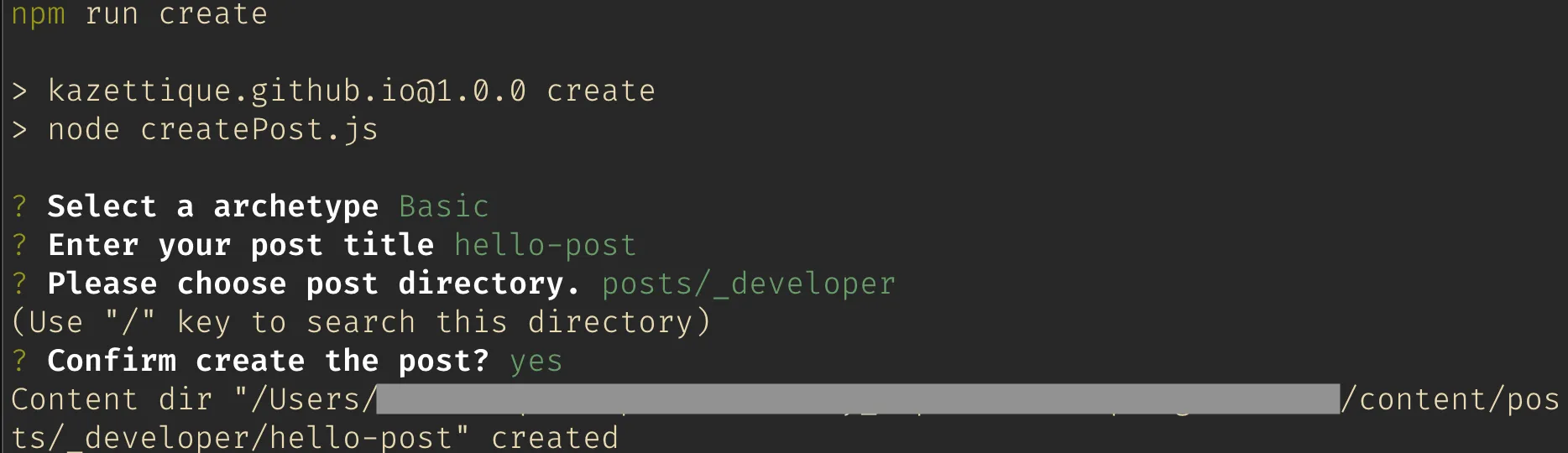
執行 npm run create,以下是執行結果:

npm run create

以上,開發愉快。

[Hugo] 用 GitHub Actions 將 Hugo 網站部署至 Vercel

必備知識:Hugoshellnpmgit

原本部落格是部署在 GitHub 自家提供的靜態網頁 GitHub Page 上,但因為 GitHub 對於免費帳號的限制(給你免費用還嫌東嫌西),若要使用 GitHub Page 部署網頁,程式庫(repository)就要維持開源(public)的狀態,但是我希望將自己部落格的程式庫設定為私人的(private),畢竟尚未完成的草稿也在上面,並不想給別人看到。(是說這麼冷清的部落格,沒人會沒事去翻你的原始碼)於是,就來研究有哪些可以部署靜態網頁的平台,其中兩個是我比較感興趣的,分別是:DenoVercel。想記錄一下設定部署的過程及遇到的問題。

Vercel 是一個很有名的前端部署平台,也是 Next.js 官方推薦的部署平台。它提供了「一鍵部署」的懶人功能,但由於我想用 GitHub Actions 自行寫腳本執行部署的動作,所以就不用一鍵部署了。

我參考網路上一位來自烏克蘭的工程師 Oleh Andrushko 的文章,其實他的描述已經很詳細清楚了,但我又撞到了一些奇怪的問題,因此卡了好一段時間。

  • 在本機安裝 Vercel CLI
  • 以 GitHub 帳號登入 Vercel CLI
  • 準備部署 Vercel 所需的三把鑰匙(Vercel 帳號憑證、Vercel 組織 Id、Vercel 專案 Id)

首先,我們必須在本機以 npm 全域安裝 Vercel CLI:

Terminal window
npm i -g vercel

安裝完成後,開啟終端機(MacOS 的 terminal 或是 Windows 的 cmd),輸入 vercel,第一次安裝完通常會出現要求登入的訊息:

Terminal window
vercel
Vercel CLI 28.10.1
> > No existing credentials found. Please log in:
> Log in to Vercel (Use arrow keys)
Continue with GitHub
Continue with GitLab
Continue with Bitbucket
Continue with Email
Continue with SAML Single Sign-On
─────────────────────────────────
Cancel

這裡選擇以 GitHub 登入 Vercel:

Terminal window
> Log in to Vercel github
> Please visit the following URL in your web browser:
> Success! GitHub authentication complete for "<你 GitHub 登入所使用的 email>"
? You are deploying your home directory. Do you want to continue? [y/N] n

最後會問你是否要部署 home 目錄,我們沒有要部署 home 目錄,所以選擇 n

進入要部署的專案資料匣位置,再下一次 vercel 指令:

Terminal window
vercel
Vercel CLI 28.10.1
? Set up and deploy "<你的 repo 的本地位置>"? [Y/n] y
? Which scope do you want to deploy to? "<你的 GitHub 名字>"
? Link to existing project? [y/N] n
? What’s your project’s name? "<你的 repo 名稱>"
? In which directory is your code located? ./
Auto-detected Project Settings (Hugo):
- Build Command: hugo -D --gc
- Development Command: hugo server -D -w -p $PORT
- Install Command: None
- Output Directory: `public` or `publishDir` from the `config` file
? Want to modify these settings? [y/N] n
Deploying "<你的 Vercel 帳號名稱>/<部署專案名稱>"
🔗 Linked to "<你的 Vercel 帳號名稱>/<部署專案名稱>" (created .vercel and added it to .gitignore)
🔍 Inspect: "<Vercel 部署專案的頁面網址>" [2s]
Preview: "<Vercel 部署後預覽的網址>" [10s]
📝 To deploy to production (hugo-test-navy.vercel.app), run `vercel --prod`

執行 vercel 指令後,會在根目錄自動產生 .vercel 資料匣,裡面會有兩支檔案,分別是 project.jsonREADME.txt,而我們要關注的是 project.json,其內容如下:

{
"projectId": "<你的 Vercel 專案 Id>",
"orgId": "<你的 Vercel 組織 Id>"
}

在此我們取得了「Vercel 組織 Id」、「Vercel 專案 Id」兩把鑰匙。

切記這兩組 Id 是必須保密的,所以方才跑 vercel 指令的時候,有加入 .gitignore,脫離版本控制。詳細描述在 README.txt 裡面。

第三把鑰匙「Vercel 帳號憑證」則要前往 Tokens – Account – Dashboard – Vercel,手動建立一個 GitHub 與 Vercel 建立連線的憑證。

前往 GitHub 的 repo,進入 Actions secrets 的設定頁面:repo > Settings > Secrets > Actions(如果找不到,網址會是:https://github.com/<你的 GitHub 帳號>/<repo 名稱>/settings/secrets/actions),然後按 New repository secret 將這三個密鑰加進去。

在本機的 repo 裡建立 GitHub Actions 的部署腳本:/.github/workflows/vercel-prod.yaml(註:檔案名稱可以任意取)

內容則參考 Oleh 的範例去修改,內容請參考以下連結:GitHub Actions for Vercel Deployment

複寫 Vercel 自動建置(build)設定

Section titled “複寫 Vercel 自動建置(build)設定”

因為我們要使用自己的 GitHub Actions 腳本進行建置的動作,所以要複寫掉 Vercel 的自動建置。

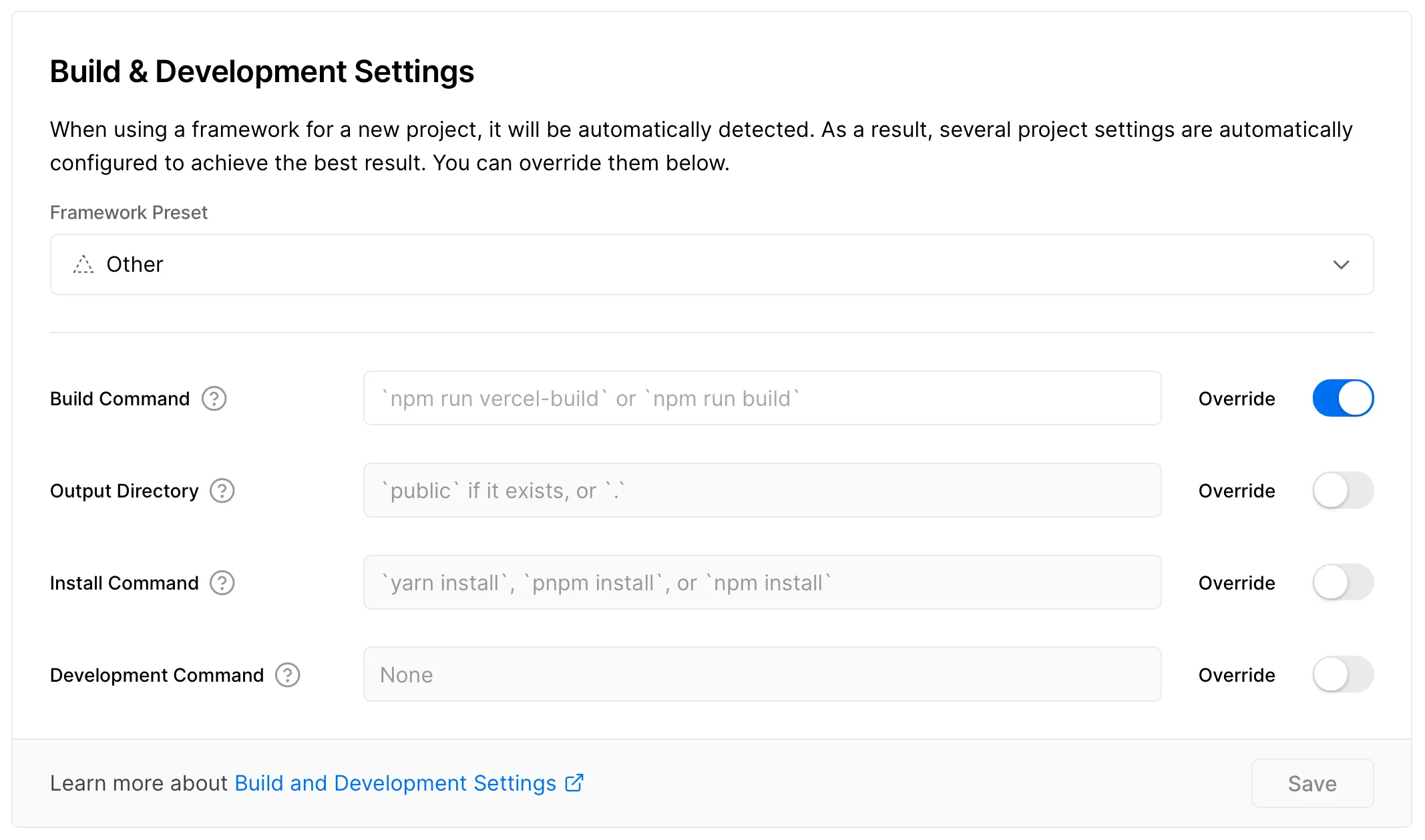
參考 vercel-action 部署工具的文件,前往 Vercel 專案的設定頁面 repo > Settings > General,在 Build & Development Settings 區塊中,Framework Preset 會自動偵測,自動帶入「Hugo」,在此選取「Other」,然後將「BUILD COMMAND」右方的 Override 按鈕開啟,複寫的值為「」,若 Vercel 阻擋空值儲存,則加一個「空白」可以解決問題,設定結果請參考下圖:

GitHub Actions 的錯誤訊息:

Terminal window
Error: No Output Directory named "public" found after the Build completed. You can configure the Output Directory in your Project Settings.

依據 Oleh 的部署腳本,它的部署路徑是 public

- name: Deploy to Vercel
uses: amondnet/vercel-action@v20
id: vercel-action
with:
vercel-token: ${{ secrets.VERCEL_TOKEN }}
vercel-org-id: ${{ secrets.VERCEL_ORG_ID }}
vercel-project-id: ${{ secrets.VERCEL_PROJECT_ID }}
github-comment: false
vercel-args: --prod
working-directory: public # 這裡產生錯誤

我將 working-directory: public 這行移除,就能正常部署了

GitHub Actions 的錯誤訊息:

Terminal window
Error: Input required and not supplied: env
at getInput

加入 env 參數:

- name: Update Deployment Status
uses: bobheadxi/deployments@v1
if: always()
with:
step: finish
token: ${{ secrets.GITHUB_TOKEN }}
status: ${{ job.status }}
env: ${{ steps.deployment.outputs.env }} # 這裡加入 env 參數
deployment_id: ${{ steps.deployment.outputs.deployment_id }}
env_url: ${{ steps.vercel-action.outputs.preview-url }}

錯誤訊息:

Terminal window
vercel-production
Node.js 12 actions are deprecated. For more information see: https://github.blog/changelog/2022-09-22-github-actions-all-actions-will-begin-running-on-node16-instead-of-node12/. Please update the following actions to use Node.js 16: amondnet/vercel-action@v20

Node 12 版本即將不支援這類提示性訊息,並不會造成部署的錯誤,只是在提醒而已。根據訊息,將使用的 GitHub Actions 工具升級到最新版(前往該工具的開源專案,就可以得知最新的版號),就可以消除提示訊息了。

以上是紀錄我使用 GitHub Actions 腳本自動部署到 Vercel 的過程、設定以及碰到的一些小問題。

一開始也提到,在經過了一番的調查之後,部署平台的口袋名單有 Vercel 與 Deno。最後採用 Vercel 的原因是,它提供了兩個部署環境:Preview 與 Production,於是我們可以寫兩份 GitHub Actions 腳本,分別部署 developmain 分支,雖然最後我並沒有使用到 Vercel 預覽環境。然而因為我對於部落格的 Git flow 流程 1 是直接在 main 分支寫稿上並推上遠端(反正在 markdown 裡的 front matter 可以設定為草稿,在建置的時候就會略過尚未完成的文章),此外設定除了分支名稱、一些設定不太一樣之外,都大同小異,有如此 Git flow 需求的同學,可以參考烏克蘭老兄的文章

此外,估計也會記錄一下部署 Deno 的流程,形式上也會跟本篇差不多。

  1. 關於部落格的 Git flow 流程,我有寫一篇短文描述這件事:GitFlow & Blog Version Control